Rasengan Logo
Rasengan Logo
  • Docs
  • Blog
  • Showcase
Using stable versionv1.2.1
Documentation
Packages
Templates
Rasengan UI Kit
Using stable versionv1.2.1
Documentation
Packages
Templates
Rasengan UI Kit

PACKAGES

Rasengan MDX

The @rasenganjs/mdx package allows you to use MDX (Markdown + JSX) files as pages in your Rasengan.js project. This enables you to write content using Markdown while embedding React components seamlessly.

Installation

Terminal
npm install @rasenganjs/mdx

Configuration

Before you can use MDX pages in your Rasengan.js project, you need to configure the mdx plugin in your rasengan.config.js file.

rasengan.config.js
import { defineConfig } from 'rasengan'; import mdx from '@rasenganjs/mdx/plugin'; export default defineConfig({ vite: { plugins: [mdx()], } });

Usage

From Markdown files to MDX Pages

Follow these steps to create an MDX page in your Rasengan.js project:

[01]Create an MDX Page
Place an `.mdx` or `.md` file inside the `app` directory with the format `[name].page.mdx` or `[name].page.md`. For example, you can create a `blog.page.mdx` file with the following content:
blog.page.mdx
--- path: /blog metadata: title: Blog Page description: Discover our new blog posts --- # Blog Page This is a `blog` page.
[02]Register the MDX Page in the Router
Import the MDX page component you just created, then add it to your router configuration. For example:
app.router.ts
import { RouterComponent, defineRouter } from 'rasengan'; import AppLayout from '@app/app.layout'; import Blog from '@app/blog.page.mdx'; class AppRouter extends RouterComponent {} export default defineRouter({ imports: [], layout: AppLayout, pages: [Blog], })(AppRouter);
[03]Load the MDX Styles
To ensure proper styling for your MDX pages, import the CSS file from `@rasenganjs/mdx` in your `main.ts` file. For example:
main.ts
import "@rasenganjs/mdx/css"; import { type AppProps } from "rasengan"; import AppRouter from "@/app/app.router"; export default function App({ children, Component }: AppProps) { return <Component router={AppRouter}>{children}</Component>; }
[04]Run the Project and Visit /blog
Start your development server and navigate to the URL of the MDX page you created. For example:
Terminal
npm run dev

From Markdown string to MDX Component

You can also use the Markdown component to render markdown content from a string. This is useful when you want to render dynamic content or when you need to render markdown content from an API response.

[01]Load the MDX Styles
To ensure proper styling for your MDX pages, import the CSS file from `@rasenganjs/mdx` in your `main.ts` file. For example:
main.ts
import "@rasenganjs/mdx/css"; import { type AppProps } from "rasengan"; import AppRouter from "@/app/app.router"; export default function App({ children, Component }: AppProps) { return <Component router={AppRouter}>{children}</Component>; }
[02]Create an MDX Component
Use the `Markdown` component from `@rasengan/mdx` to render markdown content from a string. For example:
MDX Component
import { Markdown } from '@rasengan/mdx'; const mdContent = "# Hello, World!"; const MyComponent = () => <Markdown content={mdContent} />;

Custom MDX Components

The @rasenganjs/mdx package now supports custom MDX components, allowing you to completely customize how your MDX content is rendered. This powerful feature gives you full control over the styling, behavior, and layout of your markdown content.

How it works

The MDX system automatically detects a mdx-components.{js,jsx,ts,tsx} file in your project root and uses it to configure how MDX content is rendered. This file exports a configuration object created using the defineMDXConfig function.

Setting up custom MDX components

1. Create the configuration file

Create a mdx-components.tsx (or .jsx) file in your project root:

mdx-components.jsx
import { defineMDXConfig } from '@rasenganjs/mdx'; export default defineMDXConfig({ components: { // Your custom components here }, toc: (toc) => { // Custom table of contents rendering }, layout: ({ children, toc }) => { // Custom layout component }, });

2. Customize markdown elements

You can override any standard markdown element by providing custom React components:

mdx-components.jsx
export default defineMDXConfig({ components: { // Custom headings h1: ({ children, ...props }) => ( <h1 {...props} className="text-4xl font-bold mt-8 mb-6 text-foreground"> {children} </h1> ), h2: ({ children, ...props }) => ( <h2 {...props} className="text-2xl font-bold mt-6 mb-4 text-foreground"> {children} </h2> ), // Custom paragraphs p: ({ children, ...props }) => ( <p {...props} className="text-foreground/90 leading-relaxed my-4"> {children} </p> ), // Custom links a: ({ children, href, ...props }) => ( <a href={href} {...props} className="text-primary font-semibold underline underline-offset-4 hover:text-primary/80" > {children} </a> ), // Custom code blocks code: ({ className, children, ...props }) => { // Inline code if (!props['data-language']) { return ( <code className="bg-muted px-1 py-0.5 rounded text-sm font-mono"> {children} </code> ); } // Block code (handled by pre element) return ( <code {...props} className={className}> {children} </code> ); }, // Custom blockquotes blockquote: ({ children, ...props }) => ( <blockquote {...props} className="border-l-4 border-primary pl-4 italic text-foreground/70 my-4" > {children} </blockquote> ), }, });

3. Enhanced code block styling

The system provides special handling for code blocks with language detection and syntax highlighting:

mdx-components.jsx
import { getIconForLanguageExtension } from '@rasenganjs/mdx'; export default defineMDXConfig({ components: { // Code block wrapper figure: ({ className, ...props }) => ( <figure className={` my-4 rounded-lg border bg-muted overflow-hidden ${className} `} {...props} /> ), // Code block header with language icon figcaption: ({ children, ...props }) => { const iconExtension = props['data-language'] ? getIconForLanguageExtension(props['data-language']) : null; return ( <figcaption className="flex items-center gap-2 px-4 py-2 border-b bg-muted/50"> {iconExtension} {children} </figcaption> ); }, // Enhanced code element code: ({ className, children, ...props }) => { if (!props['data-language']) { return <code className="bg-muted px-1 py-0.5 rounded text-sm">{children}</code>; } return ( <code className={` font-mono text-sm p-4 block overflow-x-auto ${className} `} {...props} > {children} </code> ); }, }, });

4. Custom table of contents

Create a custom table of contents with active section tracking:

mdx-components.jsx
import { useActiveTocItem } from '@rasenganjs/mdx'; export default defineMDXConfig({ toc: (toc) => { const [activeId] = useActiveTocItem(toc, { threshold: 0.5, rootMargin: '0px 0px -80% 0px', }); return ( <nav className="sticky top-24 w-64 max-h-[calc(100vh-6rem)] overflow-y-auto"> <h2 className="text-sm font-semibold mb-4 text-foreground/60"> On This Page </h2> <ul className="space-y-2 text-sm"> {toc.map((item) => ( <li key={item.anchor.id}> <a href={`#${item.anchor.id}`} className={` block transition-colors ${activeId === item.anchor.id ? 'text-foreground font-medium' : 'text-foreground/60 hover:text-foreground/80' } `} > {item.anchor.text} </a> {item.children?.length > 0 && ( <ul className="ml-4 mt-1 space-y-1"> {item.children.map((child) => ( <li key={child.anchor.id}> <a href={`#${child.anchor.id}`} className={` block text-xs transition-colors ${activeId === child.anchor.id ? 'text-foreground font-medium' : 'text-foreground/50 hover:text-foreground/70' } `} > {child.anchor.text} </a> </li> ))} </ul> )} </li> ))} </ul> </nav> ); }, });

5. Custom layout component

Define the overall layout structure for your MDX pages:

mdx-components.jsx
export default defineMDXConfig({ layout: ({ children, toc }) => ( <article className="max-w-4xl mx-auto px-6 py-8"> <div className="flex gap-8"> <main className="flex-1 min-w-0"> {children} </main> {toc && ( <aside className="hidden lg:block w-64 flex-shrink-0"> {toc} </aside> )} </div> </article> ), });

6. Adding custom components

You can also add completely custom components that can be used directly in your MDX files:

mdx-components.jsx
// Custom alert component const Alert = ({ type = 'info', children }) => ( <div className={` p-4 rounded-lg border-l-4 my-4 ${type === 'warning' && 'bg-yellow-50 border-yellow-400 text-yellow-800'} ${type === 'error' && 'bg-red-50 border-red-400 text-red-800'} ${type === 'info' && 'bg-blue-50 border-blue-400 text-blue-800'} `}> {children} </div> ); // Custom callout component const Callout = ({ title, children }) => ( <div className="bg-muted/50 border border-border rounded-lg p-4 my-4"> <div className="font-semibold text-foreground mb-2">{title}</div> <div className="text-foreground/80">{children}</div> </div> ); export default defineMDXConfig({ components: { // Standard markdown components... Alert, Callout, }, });

Now you can use these components directly in your MDX:

markdown.mdx
## Using Custom Components <Alert type="warning"> This is an important warning message! </Alert> <Callout title="Pro Tip"> You can create any custom component and use it in your MDX files. </Callout>

Available utilities

The @rasenganjs/mdx package provides several utility functions:

  • defineMDXConfig(config) - Creates the MDX configuration object
  • useActiveTocItem(toc, options) - Hook for tracking active TOC items
  • getIconForLanguageExtension(language) - Gets icon for code block languages
  • extractTOC(content) - Extracts table of contents from markdown content

Configuration options

The defineMDXConfig function accepts the following options:

type MDXConfigProps = { // Override standard markdown elements components?: { h1?: React.ComponentType; h2?: React.ComponentType; // ... all other HTML elements }; // Custom table of contents rendering toc?: (toc: TOCItem[]) => React.ReactNode; // Overall layout component layout?: React.FC<{ children: React.ReactNode; toc?: React.ReactNode }>; };

Automatic detection

The MDX system automatically:

  • Detects mdx-components.{js,jsx,ts,tsx} in your project root
  • Loads the configuration and applies it to all MDX pages
  • Provides the configuration to the MDXRenderer component
  • Handles both client-side and server-side rendering

This feature makes it incredibly easy to create consistent, beautifully styled documentation sites with Rasengan.js!

API

defineMDXConfig

The defineMDXConfig function is used to create the MDX configuration object.
mdx-components.jsx
import { defineMDXConfig } from '@rasenganjs/mdx'; export default defineMDXConfig({ components: { // Custom components }, toc: (toc) => { // Custom TOC rendering }, layout: ({ children, toc }) => { // Custom layout }, });

Markdown

The Markdown component is used to render markdown content from a string.

Markdown.tsx
import { Markdown } from '@rasengan/mdx';

Props

NameTypeDescription
contentstringThe markdown content to render.
classNamestringThe class name to apply to the rendered markdown content.

mdx() Plugin

The mdx() plugin is used to enable MDX support in your Rasengan.js project.

rasengan.config.js
import { defineConfig } from 'rasengan'; import mdx from '@rasengan/mdx/plugin'; export default defineConfig({ vite: { plugins: [mdx()], } });

Options

The mdx() plugin accepts the following configuration options:

MDX Plugin Options
type MDXConfig = { remarkPlugins?: PluggableList; rehypePlugins?: PluggableList; code?: { theme?: Options['theme']; keepBackground?: Options['keepBackground']; }; };
ParameterTypeDescription
remarkPluginsPluggableListArray of remark plugins to process the markdown. Defaults to [].
rehypePluginsPluggableListArray of rehype plugins to process the HTML. Defaults to [].
code.themeOptions['theme']Syntax highlighting theme for code blocks. Defaults to { light: 'one-light', dark: 'one-dark-pro' }.
code.keepBackgroundOptions['keepBackground']Whether to keep the original background color in code blocks. Defaults to true.

Example with custom options

rasengan.config.js
import { defineConfig } from 'rasengan'; import mdx from '@rasengan/mdx/plugin'; import remarkMath from 'remark-math'; import rehypeKatex from 'rehype-katex'; export default defineConfig({ vite: { plugins: [ mdx({ remarkPlugins: [remarkMath], rehypePlugins: [rehypeKatex], code: { theme: { light: 'github-light', dark: 'github-dark', }, keepBackground: false, }, }), ], } });

Community

Join the Rasengan.js community to get support, ask questions, and share your projects:

  • GitHub Discussions – Ask questions and share ideas.
  • X (Twitter) – Stay updated with the latest news.
  • Linkedin – Follow the company page.

Let's build something amazing with Rasengan.js! 🚀

License

This package is MIT licensed.

On This Page

  • Installation
  • Configuration
  • Usage
    • From Markdown files to MDX Pages
    • From Markdown string to MDX Component
  • Custom MDX Components
    • How it works
    • Setting up custom MDX components
  • Using Custom Components
    • Available utilities
    • Configuration options
    • Automatic detection
  • API
    • defineMDXConfig
    • Markdown
    • mdx() Plugin
  • Community
  • License

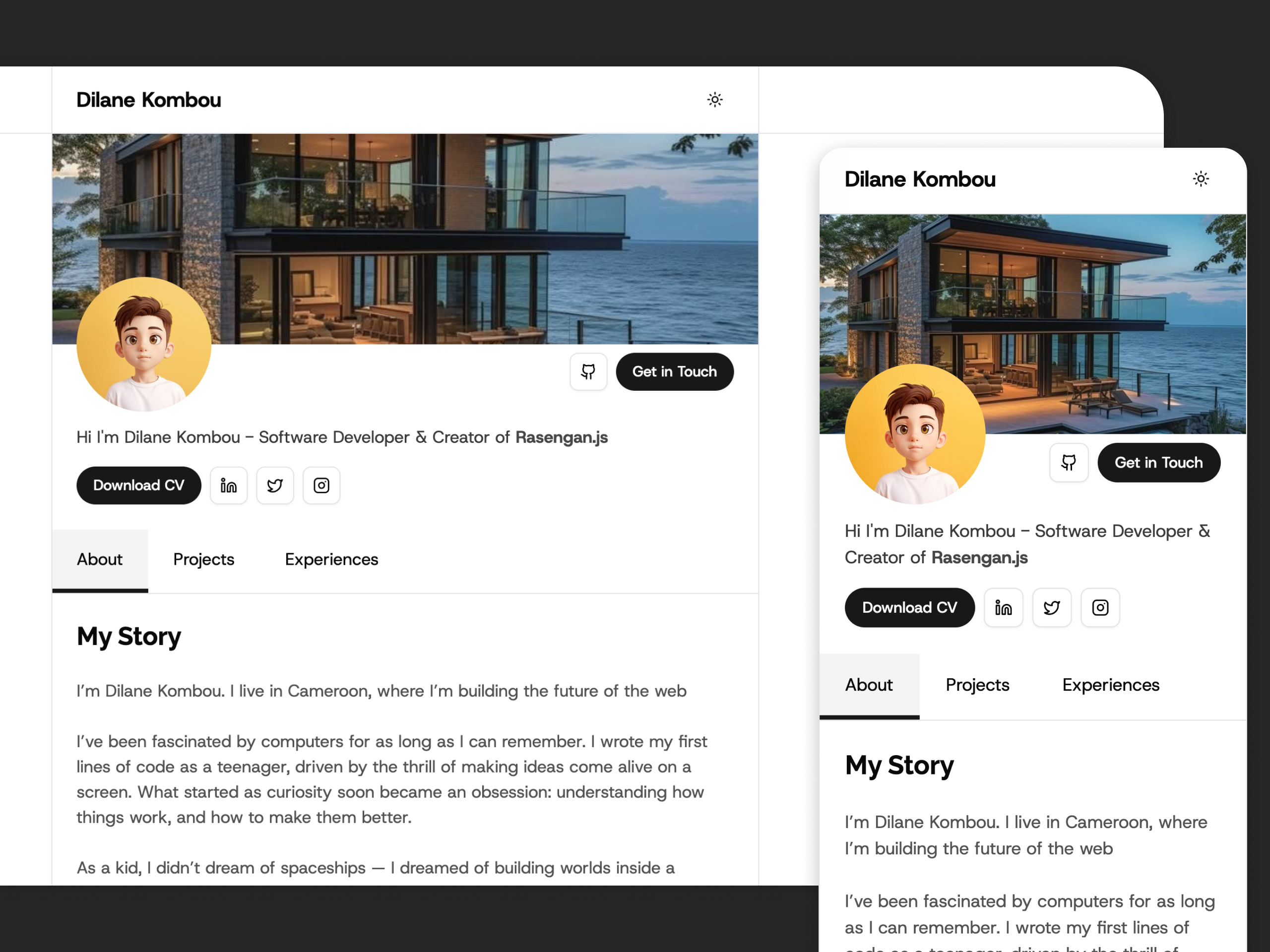
Discover Plus Ultra ✨

A stunning and well crafted Portfolio website to showcase your work in a nice way.

Rasengan Logo
Rasengan Logo

Resources

  • Docs
  • Packages
  • Blog
  • Showcase
  • Support us

Products

  • Rasengan UI
  • Rasengan Hub
  • Chidori
  • Nindo
  • Chunin

Community

  • Github
  • X (Twitter)

Subscribe to the Newsletter

Stay informed to the news about rasengan.js including new releases, events, etc...

© 2024-2026 Rasengan Labs, All rights reserved.